Mac Support: Difference between revisions
(Getting reports that the current PHP installation instructions aren't working. Let's use the official brew command instead (again)) |
(→Changelog: Point to /wiki subdirectory instead of main upload dir) |
||
| (67 intermediate revisions by 3 users not shown) | |||
| Line 1: | Line 1: | ||
This page provides information about the latest official Flashpoint release for Mac. For information about older releases, see the [[/Beta 2022-06-22|Beta 2022-06-22]] subpage. | |||
If you have any issues running Flashpoint, please [https://discord.gg/S9uJ794 join our Discord] and post your issues in a new thread on the <code>help</code> forum channel. | |||
== Compatibility == | |||
Flashpoint for Mac is fully compatible with macOS Sierra & newer, and has limited support for OS X El Capitan. Older versions won't work due to the launcher and/or game server being incompatible. See the table below for a detailed support chart, or [[#Installing Flashpoint|skip to the next section to begin installing Flashpoint]]. | |||
{|class="wikitable" | |||
!colspan=2|macOS Support | |||
!Notes | |||
|- | |||
!≤ <abbr title="10.10">Yosemite</abbr> | |||
!style="background:#ffe3e3;"|None | |||
|<center>Too difficult to port<br>launcher & game server.</center> | |||
|- | |||
!<abbr title="10.11">El Capitan</abbr> | |||
!style="background:#ffb;"|Partial | |||
|<center>Wine can't be built, so<br>non-native apps don't work.<br>Ruffle also doesn't launch.</center> | |||
|- | |||
!<abbr title="10.12">Sierra</abbr> | |||
!rowspan=10 style="background:#dfd;"|Full | |||
|rowspan=3|<center>May be very slow when<br>loading/searching content.</center> | |||
|- | |||
!<abbr title="10.13">High Sierra</abbr> | |||
|- | |||
!<abbr title="10.14">Mojave</abbr> | |||
|- | |||
!<abbr title="10.15">Catalina</abbr> | |||
|rowspan=7|<center>Catalina & newer can't run<br>32-bit apps, so Wine must<br>convert 32-bit calls to 64-bit.<br>Non-native 32-bit apps<br>will run slower as a result.</center> | |||
|- | |||
!<abbr title="11">Big Sur</abbr> | |||
|- | |||
!<abbr title="12">Monterey</abbr> | |||
|- | |||
!<abbr title="13">Ventura</abbr> | |||
|- | |||
!<abbr title="14">Sonoma</abbr> | |||
|- | |||
!<abbr title="15">Sequoia</abbr> | |||
|- | |||
!<abbr title="26">Tahoe</abbr> | |||
|} | |||
== Installing Flashpoint == | == Installing Flashpoint == | ||
| Line 9: | Line 48: | ||
</li> | </li> | ||
<li> | <li> | ||
Scroll down and double-click the Utilities folder to open it. Then open the Terminal app. <br> | Scroll down and double-click the Utilities folder to open it. Then open the Terminal app.<br> | ||
[[File: | [[File:MacUtilitiesFolder.png]] | ||
[[File:MacTerminal.png]] | |||
</li> | </li> | ||
<li> | <li> | ||
Copy the following command, then paste it into the Terminal and press Return to download Flashpoint:<br> | |||
[[File: | <pre>curl -fL https://download.flashpointarchive.org/upload/fp14.0.3_mac.txz | tar xC ~/Downloads</pre> | ||
[[File:MacFP14Download.png]]<br> | |||
'''Note''': 3rd party firewalls like LuLu may block the download with a "Couldn't connect to server" or "Could not resolve hostname" error. If you have any installed, turn them off beforehand. | |||
</li> | </li> | ||
<li> | <li> | ||
'''Wait for the download to finish''', then open the "Flashpoint 14.0.3 for Mac" folder created in your Downloads, and run the Flashpoint application.<br> | |||
[[File:MacFP14FlashpointApp.png]]<br> | |||
'''Note''': '''Do not''' move the Flashpoint app to Applications or anywhere else outside of the main folder. If you do, Flashpoint will not work properly if its path is not configured to point to the main folder. | |||
</li> | </li> | ||
<li> | <li> | ||
After Flashpoint opens, you may optionally keep the application in the Dock by control-clicking the Flashpoint icon in the Dock, then choosing Options > Keep in Dock.<br> | |||
[[File: | [[File:MacKeepInDock.png]] | ||
</li> | </li> | ||
</ol> | </ol> | ||
'''Flashpoint is now installed!''' | '''Flashpoint is now installed!''' | ||
== Troubleshooting == | == Troubleshooting == | ||
If Flashpoint | === JavaScript Error on First Launch === | ||
[[File:JavaScriptError.png|thumb|An example of the JavaScript error popup.]] | |||
When first launching Flashpoint, some users may encounter a JavaScript error stating the following: | |||
Uncaught Exception: Error: Preferences must be set before you can open a window. | |||
If the launcher doesn't start upon pressing OK, then Flashpoint doesn't have the permissions to run properly. To fix this, move the main Flashpoint '''folder''' (not just the application) to the <code>/Applications</code> folder and relaunch. If the error persists but the launcher starts after pressing OK, it can be safely ignored. | |||
=== | === No Working Sources === | ||
Some users, especially after [[#JavaScript_Error_on_First_Launch|doing the above fix]], may receive this error upon attempting to download a game: | |||
[[File: | [[File:NoWorkingSources.png|300px]] | ||
There may also not be an Update button on Flashpoint's Home tab. To fix this, quit Flashpoint and delete <code>preferences.json</code> from the main Flashpoint folder. Reopening the Flashpoint app will then regenerate the preferences file to a working state using a hidden default file. The Update button should then reappear on the Home tab, and game downloads should now work. | |||
=== Flash EOL Screen === | |||
If you see the Flash Player EOL information screen (shown below) when you try to play a game, that means that Flashpoint Navigator is loading your installed Flash Player plugin instead of the plugin that is bundled with Flashpoint. To fix the problem, [https://helpx.adobe.com/flash-player/kb/uninstall-flash-player-mac-os.html uninstall Flash Player from your Mac] and restart Flashpoint. Games should work in Flashpoint Navigator now. | |||
[[File:FlashTimebomb.png|200px]] | |||
== Using Flashpoint == | |||
[https://flashpointproject.github.io/manual/Using_the_launcher.html See the Flashpoint Manual]. | |||
== Changelog == | |||
[https://download.flashpointarchive.org/upload/wiki/fp_mac_changelog.txt See the Flashpoint for Mac changelog file]. | |||
== Technologies == | == Technologies == | ||
Currently, only Flashpoint Infinity is available for Mac. We plan to also create a Flashpoint Ultimate package for Mac in the future. To do this, we will need to set up Apache for use on Mac, including all of its required modules. | |||
Thanks to the work of volunteer [https://github.com/LindirQuenya/ LindirQuenya (Ardil)], we have an equivalent to FlashpointProxy for Mac, aptly named [https://github.com/FlashpointProject/FlashpointProxyMac FlashpointProxyMac]. This allows us to use the native standalone projectors for most Flash games and eliminates nearly all of the Flash-related bugs that plagued previous Flashpoint Mac builds. | |||
Flashpoint for Mac supports several [[Platforms|web technologies]], including: | |||
* Flash: Supported natively with standalone projectors. Installed by default. | |||
** Flash in the browser is supported natively with Flashpoint Navigator. | |||
* HTML5: Supported natively with Flashpoint Navigator and Chromium. Installed by default. | |||
** Games that use Flashpoint Launcher's Browser Mode are [[#Known Issues|not supported yet]]. | |||
* Java Applets: Supported natively with the Java Development Kit. Installed by default. | |||
** Java in the browser is not supported yet. | |||
* Shockwave: Fully supported with Wine, including Shockwave in the browser. Installed by default. | |||
* ShiVa3D: Supported with Wine and the help of custom shell scripts. | |||
* Various other web platforms that run via Flashpoint Navigator with Wine. | |||
** For a full support list, see README.txt in the main folder extracted from the downloaded archive file. | |||
An attempt was made to support Unity Web Player in Wine, but it is not working right now. See [[#Known Issues|Known Issues]]. | |||
== | == Known Issues == | ||
* | * [https://github.com/FlashpointProject/launcher/issues/333#issuecomment-1218457380 Launching HTML5 games that use Flashpoint Launcher's Browser Mode fails and shows an error popup]. | ||
* Unity Web Player games in Wine will get stuck on the loading screen. Audio will play, but the graphics will not initialize. We are currently trying to diagnose the cause of this problem. | |||
* Clicking a link inside a Flash game that launches your default web browser may also crash the browser. This is because the Flash projector is launched with an environment variable telling it to load FlashpointProxyMac, and it passes the variable to its child processes. But the variable value is a relative path to the FlashpointProxyMac library, and the relative path will not resolve correctly for applications in other locations, such as your default web browser. Thus the browser will fail to load the library and will crash. | |||
** This only happens if the browser is not already open because when launching a new instance of an existing process, it inherits the environment of the existing process. | |||
** We considered avoiding the problem by referring to the FlashpointProxyMac library with an absolute path, but this would force the launched browser to use Flashpoint's proxy, which is not ideal either. | |||
** It seems like older Flash projector versions do not have this issue, so we are considering using the Adobe Flash Player 29 projector by default on Mac if no better solution is found. | |||
* | * Flash games that use Flashpoint Navigator may not work in mainland China due to Adobe's geolocation restrictions, which we have not patched out of the Mac browser plugin yet. A workaround would be to use Wine to play the games instead. To switch to Wine, click the Config tab of the launcher, scroll down and click the "Native Platforms" dropdown, and uncheck Flash. | ||
* HTML5 games may perform poorly in Flashpoint Navigator on Apple Silicon Macs, because it is an Intel binary, and therefore must go through the Rosetta 2 translation layer. We plan on shipping builds which can run natively on Apple Silicon in the near future. | |||
* All content running through Wine opens in the background, behind the Flashpoint launcher, on modern macOS versions. It is currently unknown which version this started occurring in. | |||
* | |||
** | |||
* | |||
* | |||
* Flash | |||
* | |||
* | |||
* | |||
== Running Windows on your Mac == | == Running Windows on your Mac == | ||
{{:Running Windows on your Mac}} | |||
<noinclude>[[Category:Technologies]]</noinclude> | <noinclude>[[Category:Technologies]]</noinclude> | ||
Latest revision as of 18:41, 18 December 2025
This page provides information about the latest official Flashpoint release for Mac. For information about older releases, see the Beta 2022-06-22 subpage.
If you have any issues running Flashpoint, please join our Discord and post your issues in a new thread on the help forum channel.
Compatibility
Flashpoint for Mac is fully compatible with macOS Sierra & newer, and has limited support for OS X El Capitan. Older versions won't work due to the launcher and/or game server being incompatible. See the table below for a detailed support chart, or skip to the next section to begin installing Flashpoint.
| macOS Support | Notes | |
|---|---|---|
| ≤ Yosemite | None | launcher & game server. |
| El Capitan | Partial | non-native apps don't work. Ruffle also doesn't launch. |
| Sierra | Full | loading/searching content. |
| High Sierra | ||
| Mojave | ||
| Catalina | 32-bit apps, so Wine must convert 32-bit calls to 64-bit. Non-native 32-bit apps will run slower as a result. | |
| Big Sur | ||
| Monterey | ||
| Ventura | ||
| Sonoma | ||
| Sequoia | ||
| Tahoe | ||
Installing Flashpoint
- Open Finder, then click the Applications tab.
-
Scroll down and double-click the Utilities folder to open it. Then open the Terminal app.
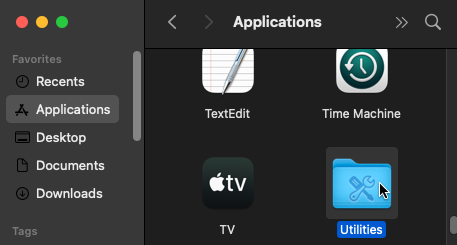
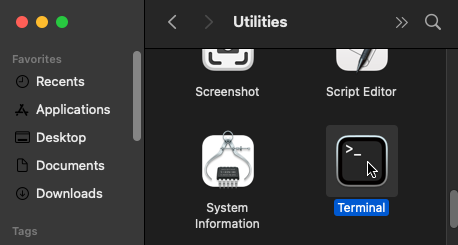
-
Copy the following command, then paste it into the Terminal and press Return to download Flashpoint:
curl -fL https://download.flashpointarchive.org/upload/fp14.0.3_mac.txz | tar xC ~/Downloads

Note: 3rd party firewalls like LuLu may block the download with a "Couldn't connect to server" or "Could not resolve hostname" error. If you have any installed, turn them off beforehand. -
Wait for the download to finish, then open the "Flashpoint 14.0.3 for Mac" folder created in your Downloads, and run the Flashpoint application.
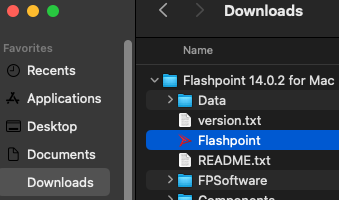
Note: Do not move the Flashpoint app to Applications or anywhere else outside of the main folder. If you do, Flashpoint will not work properly if its path is not configured to point to the main folder. -
After Flashpoint opens, you may optionally keep the application in the Dock by control-clicking the Flashpoint icon in the Dock, then choosing Options > Keep in Dock.
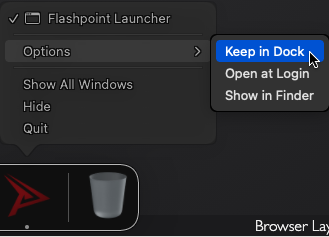


Flashpoint is now installed!
Troubleshooting
JavaScript Error on First Launch

When first launching Flashpoint, some users may encounter a JavaScript error stating the following:
Uncaught Exception: Error: Preferences must be set before you can open a window.
If the launcher doesn't start upon pressing OK, then Flashpoint doesn't have the permissions to run properly. To fix this, move the main Flashpoint folder (not just the application) to the /Applications folder and relaunch. If the error persists but the launcher starts after pressing OK, it can be safely ignored.
No Working Sources
Some users, especially after doing the above fix, may receive this error upon attempting to download a game:

There may also not be an Update button on Flashpoint's Home tab. To fix this, quit Flashpoint and delete preferences.json from the main Flashpoint folder. Reopening the Flashpoint app will then regenerate the preferences file to a working state using a hidden default file. The Update button should then reappear on the Home tab, and game downloads should now work.
Flash EOL Screen
If you see the Flash Player EOL information screen (shown below) when you try to play a game, that means that Flashpoint Navigator is loading your installed Flash Player plugin instead of the plugin that is bundled with Flashpoint. To fix the problem, uninstall Flash Player from your Mac and restart Flashpoint. Games should work in Flashpoint Navigator now.

Using Flashpoint
Changelog
See the Flashpoint for Mac changelog file.
Technologies
Currently, only Flashpoint Infinity is available for Mac. We plan to also create a Flashpoint Ultimate package for Mac in the future. To do this, we will need to set up Apache for use on Mac, including all of its required modules.
Thanks to the work of volunteer LindirQuenya (Ardil), we have an equivalent to FlashpointProxy for Mac, aptly named FlashpointProxyMac. This allows us to use the native standalone projectors for most Flash games and eliminates nearly all of the Flash-related bugs that plagued previous Flashpoint Mac builds.
Flashpoint for Mac supports several web technologies, including:
- Flash: Supported natively with standalone projectors. Installed by default.
- Flash in the browser is supported natively with Flashpoint Navigator.
- HTML5: Supported natively with Flashpoint Navigator and Chromium. Installed by default.
- Games that use Flashpoint Launcher's Browser Mode are not supported yet.
- Java Applets: Supported natively with the Java Development Kit. Installed by default.
- Java in the browser is not supported yet.
- Shockwave: Fully supported with Wine, including Shockwave in the browser. Installed by default.
- ShiVa3D: Supported with Wine and the help of custom shell scripts.
- Various other web platforms that run via Flashpoint Navigator with Wine.
- For a full support list, see README.txt in the main folder extracted from the downloaded archive file.
An attempt was made to support Unity Web Player in Wine, but it is not working right now. See Known Issues.
Known Issues
- Launching HTML5 games that use Flashpoint Launcher's Browser Mode fails and shows an error popup.
- Unity Web Player games in Wine will get stuck on the loading screen. Audio will play, but the graphics will not initialize. We are currently trying to diagnose the cause of this problem.
- Clicking a link inside a Flash game that launches your default web browser may also crash the browser. This is because the Flash projector is launched with an environment variable telling it to load FlashpointProxyMac, and it passes the variable to its child processes. But the variable value is a relative path to the FlashpointProxyMac library, and the relative path will not resolve correctly for applications in other locations, such as your default web browser. Thus the browser will fail to load the library and will crash.
- This only happens if the browser is not already open because when launching a new instance of an existing process, it inherits the environment of the existing process.
- We considered avoiding the problem by referring to the FlashpointProxyMac library with an absolute path, but this would force the launched browser to use Flashpoint's proxy, which is not ideal either.
- It seems like older Flash projector versions do not have this issue, so we are considering using the Adobe Flash Player 29 projector by default on Mac if no better solution is found.
- Flash games that use Flashpoint Navigator may not work in mainland China due to Adobe's geolocation restrictions, which we have not patched out of the Mac browser plugin yet. A workaround would be to use Wine to play the games instead. To switch to Wine, click the Config tab of the launcher, scroll down and click the "Native Platforms" dropdown, and uncheck Flash.
- HTML5 games may perform poorly in Flashpoint Navigator on Apple Silicon Macs, because it is an Intel binary, and therefore must go through the Rosetta 2 translation layer. We plan on shipping builds which can run natively on Apple Silicon in the near future.
- All content running through Wine opens in the background, behind the Flashpoint launcher, on modern macOS versions. It is currently unknown which version this started occurring in.
Running Windows on your Mac
For a better experience, you may want to use the latest version of Flashpoint for Windows instead of the current Mac version. There are two main options for doing so:
- If you have an Intel-based Mac, you can run Windows directly on your Mac using Boot Camp.
- You can use virtualization software such as Parallels, VirtualBox (which is free), or VMWare Fusion.
If you have enough disk space, Boot Camp is the most reliable option. But as mentioned above, it does not work on Apple Silicon Macs (M1 and above). Here is how to check what kind of Mac you have.
Once you have Windows up and running, follow these steps to install Flashpoint:
- Download Flashpoint if you haven't yet.
- Within your Windows environment, run the Flashpoint installer. You don't need to change any options, though you can if you want to.
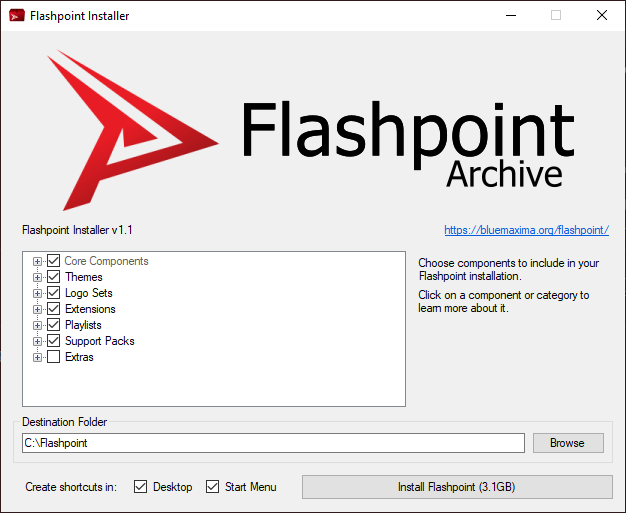
- When you're ready, click the "Install Flashpoint" button.
- After Flashpoint is done installing, double-click the new Flashpoint shortcut on your Windows desktop to start playing!
