Running Windows on your Mac: Difference between revisions
Jump to navigation
Jump to search
(Simplified a bit) |
m (Mention that Boot Camp does not work on Apple Silicon) |
||
| (2 intermediate revisions by 2 users not shown) | |||
| Line 1: | Line 1: | ||
For a better experience, you may want to use the [https://flashpointarchive.org/downloads latest version of Flashpoint for Windows] instead of the current Mac | For a better experience, you may want to use the [https://flashpointarchive.org/downloads latest version of Flashpoint for Windows] instead of the current Mac version. There are two main options for doing so: | ||
* | * If you have an Intel-based Mac, you can run Windows directly on your Mac using [https://support.apple.com/boot-camp Boot Camp]. | ||
* You can use virtualization software such as [https://www.parallels.com/ Parallels], [https://www.virtualbox.org/ VirtualBox] (which is free), or [https://www.vmware.com/products/fusion.html VMWare Fusion]. | * You can use virtualization software such as [https://www.parallels.com/ Parallels], [https://www.virtualbox.org/ VirtualBox] (which is free), or [https://www.vmware.com/products/fusion.html VMWare Fusion]. | ||
If you have enough disk space, Boot Camp is the most reliable option. | If you have enough disk space, Boot Camp is the most reliable option. But as mentioned above, it does not work on Apple Silicon Macs (M1 and above). [https://www.howtogeek.com/706226/how-to-check-if-your-mac-is-using-an-intel-or-apple-silicon-processor/ Here is how to check what kind of Mac you have.] | ||
Once you have Windows up and running, follow these steps to install Flashpoint: | Once you have Windows up and running, follow these steps to install Flashpoint: | ||
| Line 10: | Line 10: | ||
# When you're ready, click the "Install Flashpoint" button. | # When you're ready, click the "Install Flashpoint" button. | ||
# After Flashpoint is done installing, double-click the new Flashpoint shortcut on your Windows desktop to start playing! | # After Flashpoint is done installing, double-click the new Flashpoint shortcut on your Windows desktop to start playing! | ||
<noinclude> | |||
[[Category:Technologies]] | |||
</noinclude> | |||
Latest revision as of 04:44, 4 September 2026
For a better experience, you may want to use the latest version of Flashpoint for Windows instead of the current Mac version. There are two main options for doing so:
- If you have an Intel-based Mac, you can run Windows directly on your Mac using Boot Camp.
- You can use virtualization software such as Parallels, VirtualBox (which is free), or VMWare Fusion.
If you have enough disk space, Boot Camp is the most reliable option. But as mentioned above, it does not work on Apple Silicon Macs (M1 and above). Here is how to check what kind of Mac you have.
Once you have Windows up and running, follow these steps to install Flashpoint:
- Download Flashpoint if you haven't yet.
- Within your Windows environment, run the Flashpoint installer. You don't need to change any options, though you can if you want to.
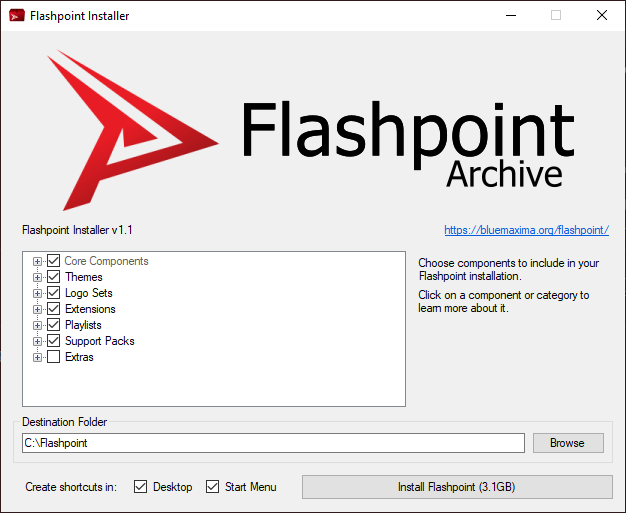
- When you're ready, click the "Install Flashpoint" button.
- After Flashpoint is done installing, double-click the new Flashpoint shortcut on your Windows desktop to start playing!
